


For Fortnite players, the ability to seamlessly play across various platforms like Xbox, PS4, Nintendo Switch, and PC hinges on the effective management of their Epic Games account. This account acts as a central hub, syncing game progress and purchases across different devices.
Players often face challenges when trying to reconnect their Epic Games account after switching devices. This situation can lead to confusion, especially when dealing with different platform-specific procedures. Understanding the steps to successfully link or relink your account is crucial for a continuous gaming experience. Here’s how to navigate this process.
Reconnecting Your Fortnite Epic Games Account
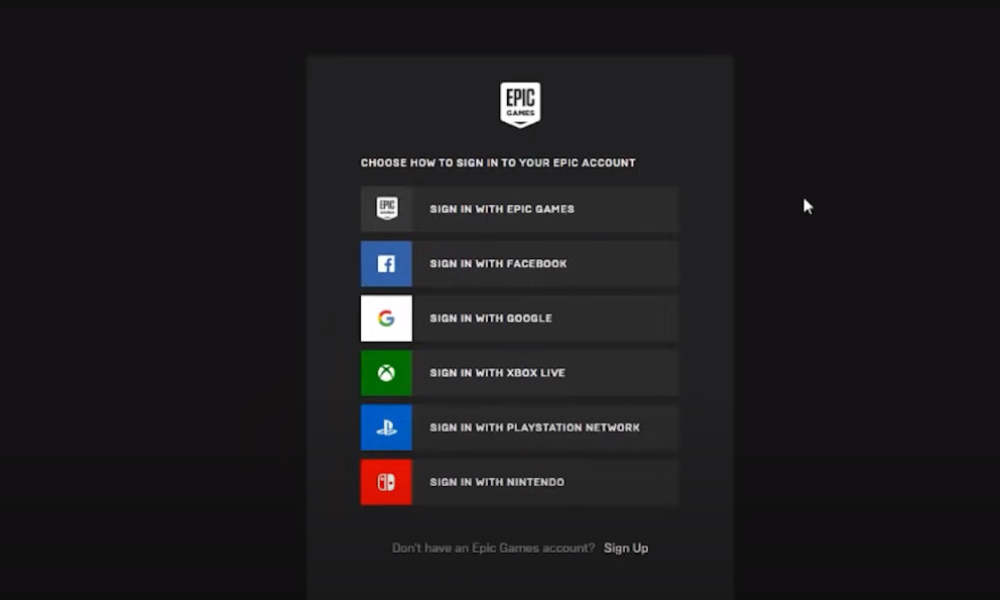
An Epic Games account is essential for Fortnite players. It stores game progress, achievements, and in-game purchases, making them accessible across Xbox, PS4, Nintendo Switch, and PC. The account ensures that your Fortnite experience is consistent, regardless of the gaming platform you choose. This cross-platform functionality is a key feature of Fortnite, allowing players to switch devices without losing their game progress or items they have acquired.
Steps to recover unlinked or skipped Epic Games Fortnite account
To recover an unlinked Fortnite account, you need to first sign into your Epic Games account. Once logged in, click on your username and select the “Account” option from the dropdown menu.
- In your account page, navigate to the “Apps and Accounts” section. This is where you can connect your console or PC platform—be it Steam, Xbox, PlayStation, or Nintendo—to the device you want to restore your Fortnite account on.
- If there’s an existing link, you should disconnect or unlink the console or mobile account that doesn’t hold any data.
- Refresh this page before relinking your active platform.
- If you encounter issues, try logging out and then logging back into your console account.
- After this, re-establish the link in your Epic Games account settings.
If a new game account appears and not your previous unlinked account, your account is likely lost. However, you can try to contact Epic Games support in this case requesting restoration.
Step-by-step guide connect your Epic Games account to each platform
Xbox
- To reconnect your Epic Games account on Xbox, start by opening the Fortnite game. Navigate to the game’s settings and look for the option to link or unlink an account.
- Select ‘Link Account’ and follow the on-screen instructions.
- You will be prompted to enter your Epic Games account credentials.
- Once entered, your Xbox account will be linked to your Epic Games account, restoring your Fortnite progress and purchases.
PlayStation
For PS users, the process begins in a similar fashion.
- Open Fortnite and go to the account settings.
- Here, you will find options to manage your account links.
- Choose to link your Epic Games account and input your login details. This action will synchronize your Fortnite data with your PS4, ensuring that your game progress and purchases are up to date.
Nintendo Switch
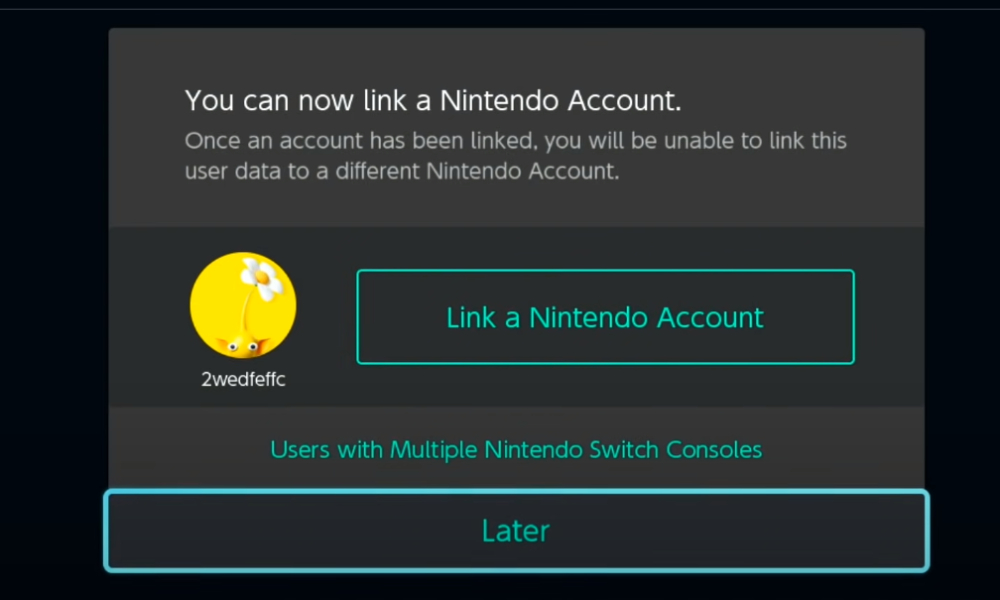
Linking your Epic Games account to a Nintendo Switch requires attention to a unique constraint: you can only link one Nintendo Account to your Epic Games account.
- To do this, launch Fortnite on your Switch and access the account settings.
- Follow the prompts to link your Epic Games account.
- Remember, once linked, you cannot switch the Nintendo Account linked to your Epic Games account.
PC
PC players should open the Epic Games launcher to begin the reconnection process.
- Within the launcher, navigate to your account settings.
- Here, you will find options to manage your linked accounts.
- Select the option to link your Epic Games account to your PC. This will ensure that your Fortnite progress and purchases are available when playing on PC.
Resolving the ‘Previously Linked Account’ error in Epic Games
When attempting to link a new platform account to your Epic Games account, you might encounter an error stating, “This Epic Account was previously linked to a different external account.” This error occurs due to a restriction that prevents linking a new platform account of the same type that was previously linked.
To resolve this issue, you have two options:
- Re-link the Original Platform Account: The simplest solution is to re-link your original platform account to your Epic Games account. This is straightforward if you still have access to your original account.
- Remove the Restriction and Link a New Account: If you cannot or do not wish to re-link the original platform account, Epic Games allows you to remove this restriction and link a new platform account once every 365 days (1 year). Before you can do this, you must:
- Unlink the platform from your Epic Games account. Instructions for unlinking can be found in Epic Games’ support articles.
- Be logged in and have access to the email registered to your Epic Games account.
- Start the process to remove the restriction. This can be initiated from the Epic Games account settings.
Note on Fortnite Crew Subscriptions: If you have an active Fortnite Crew subscription, be aware that unlinking platform accounts can affect your subscription. No new monthly content will be granted to your Epic Games account after unlinking. If you plan to unlink your account, consider canceling your Crew subscription first.
Troubleshooting Common Issues
Players often encounter issues like login errors or account mismatches during the reconnection process.
- If you face such problems, the first step is to verify that you are using the correct Epic Games account credentials.
- If the issue persists, consult the Epic Games support center for your specific platform. They provide tailored solutions for each device, ensuring that your account reconnection is smooth and successful.
Final thoughts
Effectively managing and reconnecting your Epic Games account across various platforms like Xbox, PS4, Nintendo Switch, and PC is crucial for a seamless Fortnite experience. The process, while straightforward, requires careful attention to platform-specific procedures and account security. By following the detailed steps provided, players can overcome common challenges such as account mismatches or login issues.
The key to a hassle-free gaming experience lies in the meticulous management of your Epic Games account. Ensuring this not only preserves your game progress and purchases but also enhances your overall Fortnite experience across different gaming platforms.
Muskan, your engaging portrayal truly hit home with me! Couldn’t tact and openness simply transform any quirky aspect into on- field spontaneity?🤔 Here’s a fly away notion: What about literature sharpening our imaginative vision in slice-of-life situations?💡 It reminds me of a time I slipped but integrated the mishap splendidly into my public speech while everyone had a laugh! Guess I serendipitously implemented pragmatic advice even before having it from frolicking like you frame it. Isn’t that ironical? Isn’t functions of humor in life quite underrated? How do implement humor in sensitive situations that won’t offend anybody? Grins ANC Cheers, Sunny in Spearfish🌻 AI learning fantasy course>x DO sanctionidd6612765684